
Disclosure: this article contains affiliate links. If you buy through them, Bright Technology may earn a small commission at no extra cost to you. As an Amazon Associate, we earn from qualifying purchases.
A great gaming setup isn’t about spending a lot. It’s about solving four things in order: good lighting, a comfortable posture, cables under control and a few accessories you’ll actually use. This guide covers gaming setup ideas for LED lighting, ergonomics, cable management and accessories, with a budget plan by levels.
- What each gaming setup gadget improves
- LED lighting for your gaming setup
- Ergonomics: a setup that's kind to your body
- Cable management: what separates a normal setup from a clean one
- Gaming accessories to complete your desk
- Budget: a gaming setup by levels
- What to choose for your situation
- Gaming setup FAQ
- Keep reading
Quick answer: if you make only one change, start with lighting: a monitor light bar to see your keyboard without glare and RGB bias lights behind the screen to reduce contrast with the room. Then raise your monitor to the right height, tidy your cables and add an XXL desk mat. Gadgets come last.
What each gaming setup gadget improves
| Gadget | What it solves | Priority |
|---|---|---|
| Monitor light bar | Lights the desk without glare on the screen | High |
| RGB bias lights | Reduce contrast between screen and dark room, add atmosphere | High |
| Monitor arm | Puts the screen at eye level and frees desk space | High if your neck hurts |
| XXL desk mat | One surface for keyboard and mouse, protects the desk | Medium |
| Under-desk cable tray | Hides the power strip and adapters | Medium |
| Gaming headset | Precise audio and clear voice chat | Medium |
| Wireless controller | Racing, sports and couch gaming | Optional |
LED lighting for your gaming setup
Lighting gives the most impact for the money. It helps to separate two jobs: task lighting, which lights the desk, and ambient lighting, which surrounds the screen. A good gaming setup combines both.
Task lighting: a monitor light bar
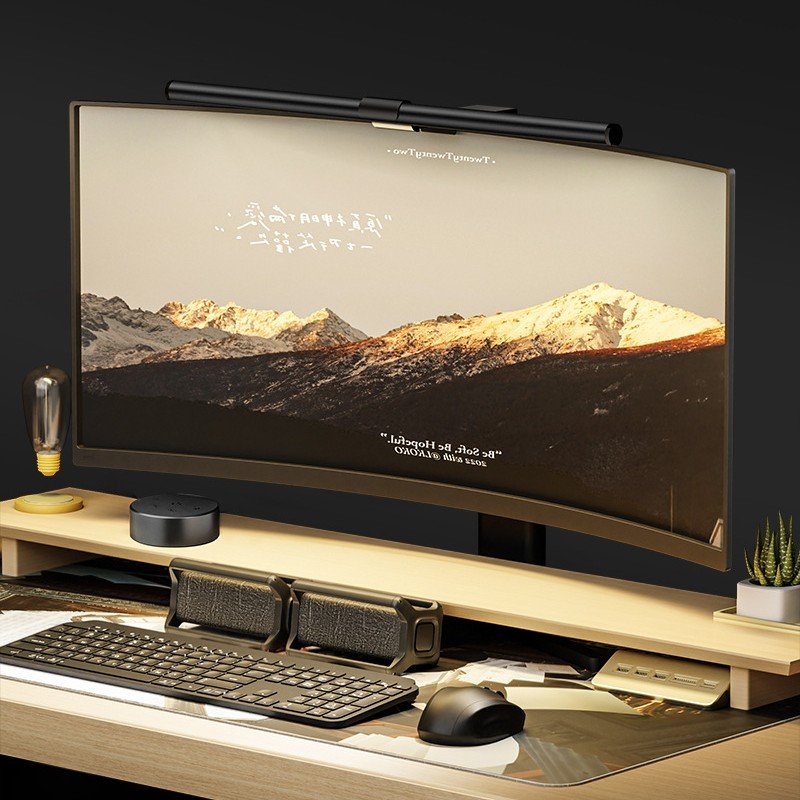
Gaming in a dark room forces your eyes to keep adjusting between a bright screen and a black background. A light bar mounted on top of the monitor solves this without taking up desk space: it aims light down at the keyboard and away from the screen, so there’s no glare.
- Pick the length for your screen: around 40 cm for 22–27-inch monitors, around 50 cm for 32-inch or ultrawide models.
- Look for adjustable color temperature (warm to cool) and stepless brightness.
- Check that the clamp fits your monitor, especially if it’s curved, and that it’s USB-powered.
- A wireless remote is handy so you don’t touch the bar.
Ambient lighting: RGB bias lights behind the screen
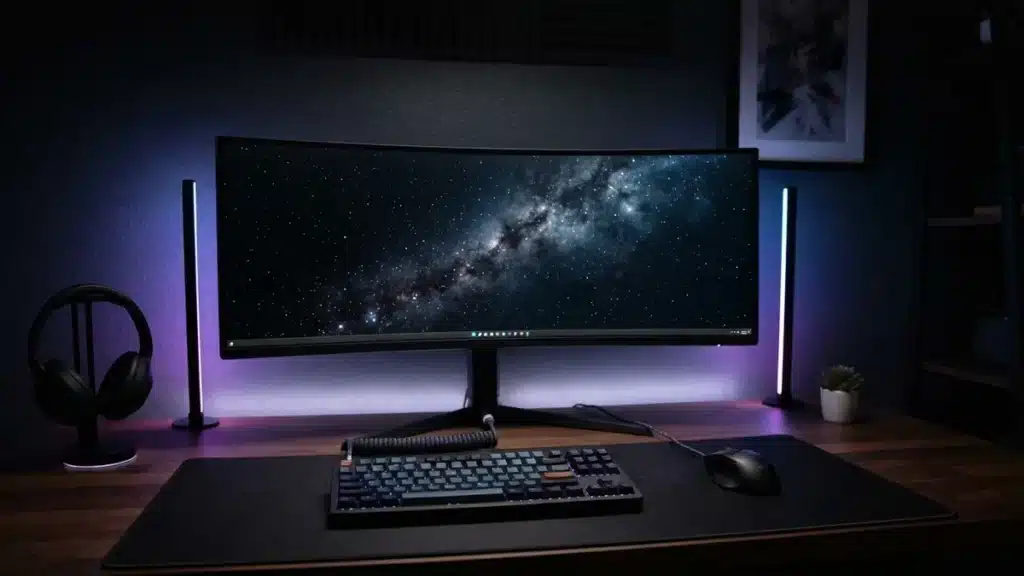
Bias lighting means placing soft light behind the screen. It raises the room’s light level slightly, reduces contrast with the display and makes long night sessions more comfortable. RGB light bars or LED strips behind or beside the monitor also give your desk depth and a better background for streaming.
- App control plus a physical remote
- Music sync and adjustable brightness
- Timer for automatic on/off
- USB power so you can run them from your monitor or a hub
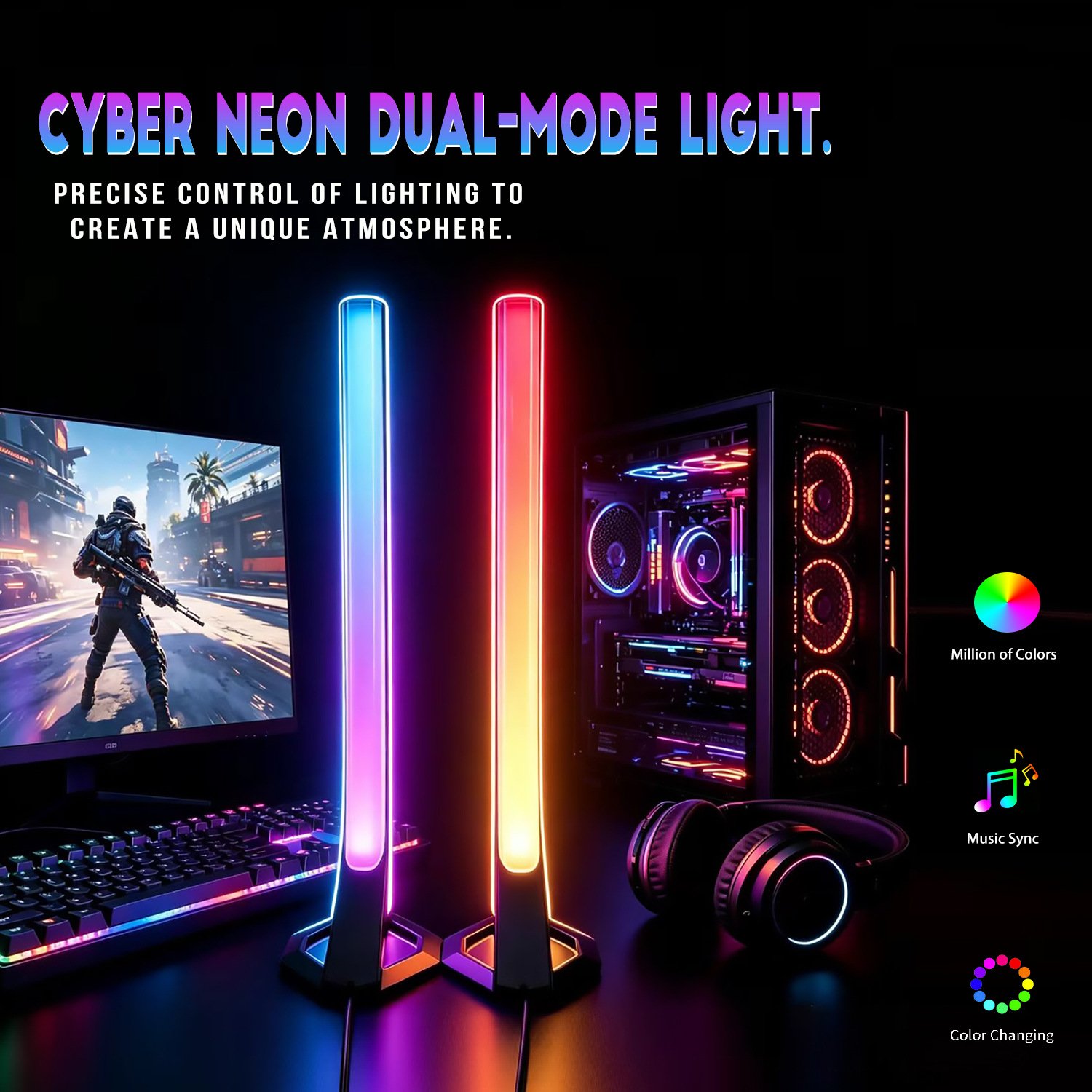
RGB light bars for gaming setups
Best for: Bias lighting and a stream-ready background
Check price on AmazonTips so your setup lights don’t get in the way
- Never aim a light directly at your eyes or let it reflect on the screen.
- At night, use warm tones and low brightness; save fast effects for gaming.
- Stick to a palette of one or two colors for a clean look.
- If you stream, light your face from the front with white light and keep RGB for the background.
Ergonomics: a setup that’s kind to your body
A beautiful setup that leaves you with a stiff neck isn’t a good setup. OSHA’s computer workstation guidance is a useful reference, even though it’s designed for office work.
Monitor height and distance
OSHA recommends placing the top line of the screen at or slightly below eye level, so you look slightly down at the center of the screen, at a viewing distance of about 20 to 40 inches (50 to 100 cm). With large or ultrawide monitors, sit toward the far end of that range.
If your monitor stand doesn’t go high enough, a desk-clamped monitor arm is the most flexible solution: it adjusts height, depth and tilt and frees up space under the screen.
Gas spring monitor arm
Best for: Raising the screen to eye level and freeing desk space
Check price on AmazonDesk surface: an XXL mat
An XXL desk mat covers the keyboard and mouse area with one surface, stops the mouse from catching an edge and protects the desk. The most common size is around 90 × 40 cm. Look for a non-slip rubber base, stitched edges and enough room for a full-size keyboard.
Breaks and posture
In a long session it’s easy to forget, but regular short breaks help a lot: use loading screens and matchmaking to stand up, stretch and look at something far away for a few seconds.
Cable management: what separates a normal setup from a clean one
Cable management changes how a setup looks more than anything, and it makes cleaning easier and prevents accidental yanks. A simple four-step method:
- Unplug and group: separate power cables from data cables (USB, HDMI, DisplayPort) to reduce tangles.
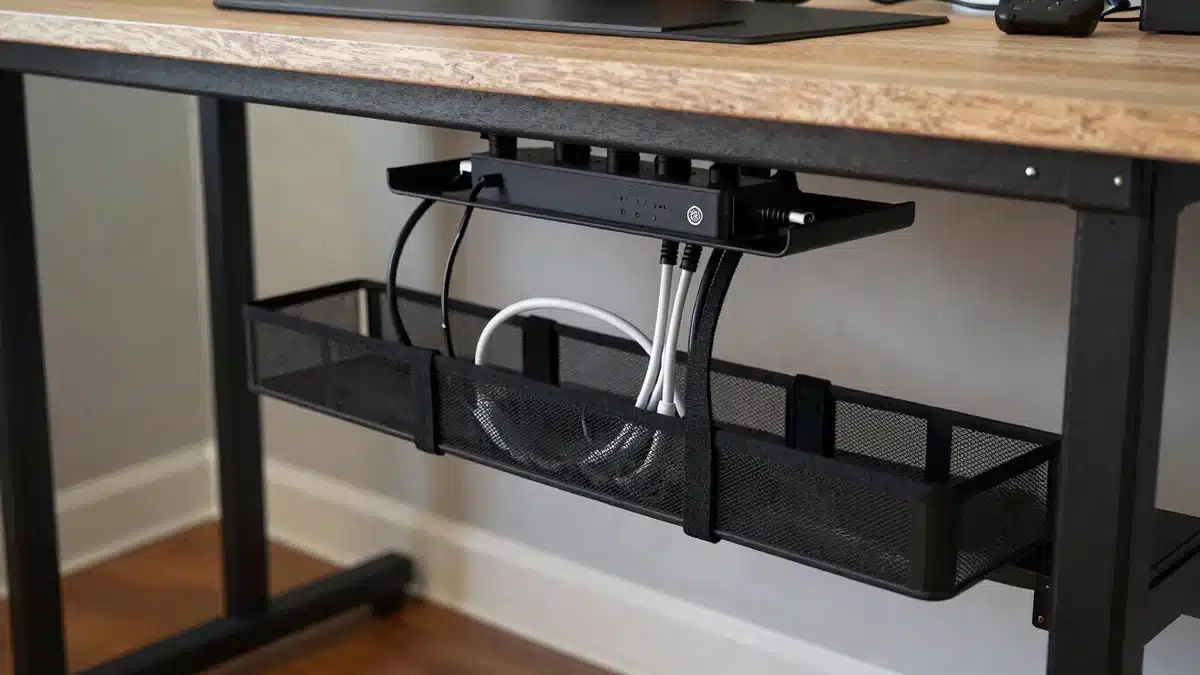
- Lift the power strip: an under-desk tray holds the strip and adapters so nothing sits on the floor.
- Run cables together: use reusable Velcro ties or a mesh sleeve to route cables together to the tower or outlet.
- Secure desk cables: adhesive clips on the desk edge for mouse, keyboard or controller charging cables.
Light bars and RGB lights are usually USB-powered: plug them into a powered USB hub or your monitor’s ports to save two outlets. And if you can, switch to wireless peripherals: fewer cables, less to hide.
Gaming accessories to complete your desk
Gaming headset
A good headset improves the experience more than many visual gadgets: you hear footsteps and shots more precisely and your team hears you clearly. Prioritize comfort for long sessions (padding and weight), a good microphone and, if you want freedom, a low-latency wireless connection.
Wireless controller for PC
Many racing, sports, platform and third-person action games are more fun with a controller than with keyboard and mouse. A wireless PC controller lets you play leaning back or hook your PC up to the TV.
Budget: a gaming setup by levels
You don’t need to buy everything at once. This plan organizes gaming setup accessories into three levels, from essential to optional:
| Level | What’s included | Relative cost |
|---|---|---|
| Basic | Monitor light bar + XXL desk mat + Velcro cable ties | Low |
| Mid | Everything above + RGB bias lights + cable tray + monitor arm | Moderate |
| Complete | Everything above + wireless gaming headset + wireless controller | Higher |
What to choose for your situation
- You mostly play at night: start with a monitor light bar and add low-brightness RGB lights behind the screen.
- You stream or record video: RGB lights give you a background and music sync adds energy; light your face separately with white light.
- Your neck or back hurts: prioritize a monitor arm and breaks over any aesthetic gadget.
- Your desk is small: a light bar on the monitor (no desk space), a monitor arm and wireless peripherals.
- You want a gift for a gamer: RGB light bars or a monitor light bar work without knowing their exact setup.
Gaming setup FAQ
Besides the PC or console: a monitor at the right height, a comfortable chair, a large desk mat, a headset and lighting that doesn’t leave the desk in the dark. That covers comfort and performance; the rest is aesthetics.
Soft light behind the screen reduces the contrast between the monitor and a dark room, making long sessions more comfortable. Keep the brightness low, around 10 to 15% of the screen’s, and don’t aim it at your eyes.
OSHA recommends the top of the screen at or slightly below eye level, at a viewing distance of about 20 to 40 inches.
Put the power strip in an under-desk tray, group cables with Velcro ties or a mesh sleeve, and secure mouse and keyboard cables with adhesive clips. Wireless peripherals reduce the problem even more.
Lighting: a monitor light bar and bias lights change both comfort and looks the most for the money. Then fix monitor height and cables.
Keep reading
Official sources: OSHA Computer Workstations eTool: monitors