
- Why 3D printer calibration matters
- Tools you need
- Step 1: Level the print bed
- Step 2: Set the Z offset
- Step 3: Get a perfect first layer
- Step 4: Calibrate the extruder (E-steps)
- Step 5: Calibrate the flow rate
- Step 6: Find the right temperature
- Step 7: Tune retraction to stop stringing
- Step 8: Dial in print speed
- Advanced calibration tests
- How to tell if your printer is well calibrated
- Common calibration mistakes
- Bottom line
- 3D printer calibration FAQ
- Keep reading
Learning how to calibrate a 3D printer is the single biggest upgrade you can make to your prints. Most failed prints have nothing to do with the printer or the filament: they come from poor calibration. A well-tuned budget printer can beat a badly tuned expensive one.
Good calibration improves surface quality, reduces failures and wasted filament, makes parts dimensionally accurate and fixes common problems such as warping, poor bed adhesion, stringing, over-extrusion and under-extrusion. This guide walks you through each step in the right order.
Quick answer: calibrate in this order: bed leveling → Z offset → first layer → E-steps → flow rate → temperature → retraction → speed. Change one setting at a time and use small test prints, not real projects, to judge each adjustment.
Why 3D printer calibration matters
3D printing depends on many variables, and small errors add up. An unlevel bed ruins the first layer, a miscalibrated extruder pushes too much or too little plastic, the wrong temperature causes surface defects and poor retraction leaves strings between parts. Treat calibration as routine maintenance, not a one-off job.
Tools you need
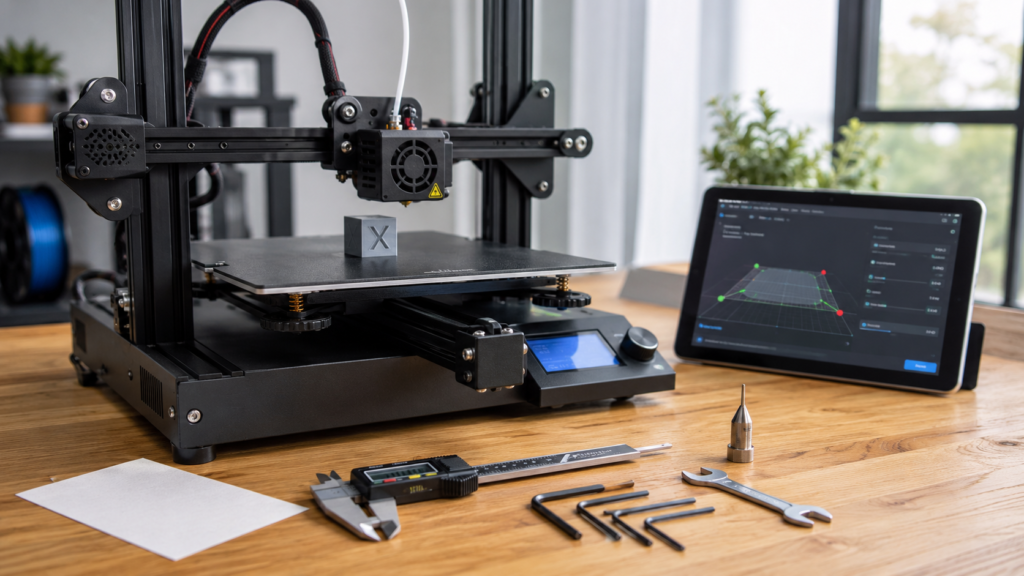
- A sheet of standard printer paper
- Digital calipers
- A steel ruler
- Good-quality filament
- Calibration test models (first-layer test, 20 mm cube, temperature and retraction towers)
- An up-to-date slicer
You don’t need professional equipment. Most calibration can be done with these simple tools, as long as you follow the same order every time so one adjustment doesn’t undo another.
Step 1: Level the print bed
If you could only do one calibration, it would be bed leveling. Leveling sets an even gap between the nozzle and the bed across the whole surface. Even printers with auto bed leveling (ABL) benefit from a good mechanical starting point.
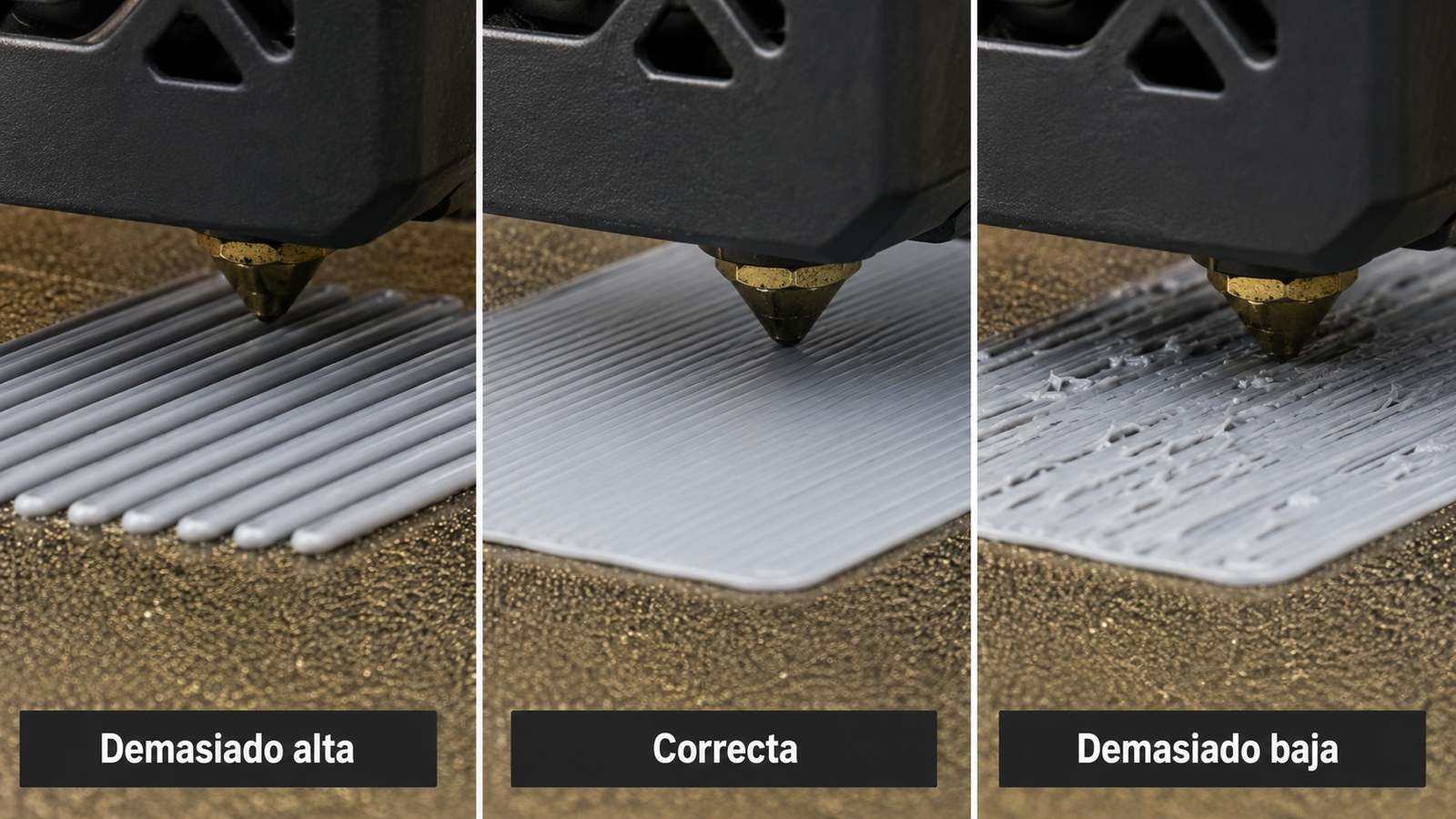
Signs your bed isn’t level
- Nozzle too high: lines don’t squish, gaps appear between them and the print lifts off, often looking like loose spaghetti.
- Nozzle too low: plastic is over-squished, the surface gets scraped, the extruder may click and the first layer looks rough.
- Uneven results: some areas print fine and others don’t, pointing to an unlevel or warped bed.
The paper method
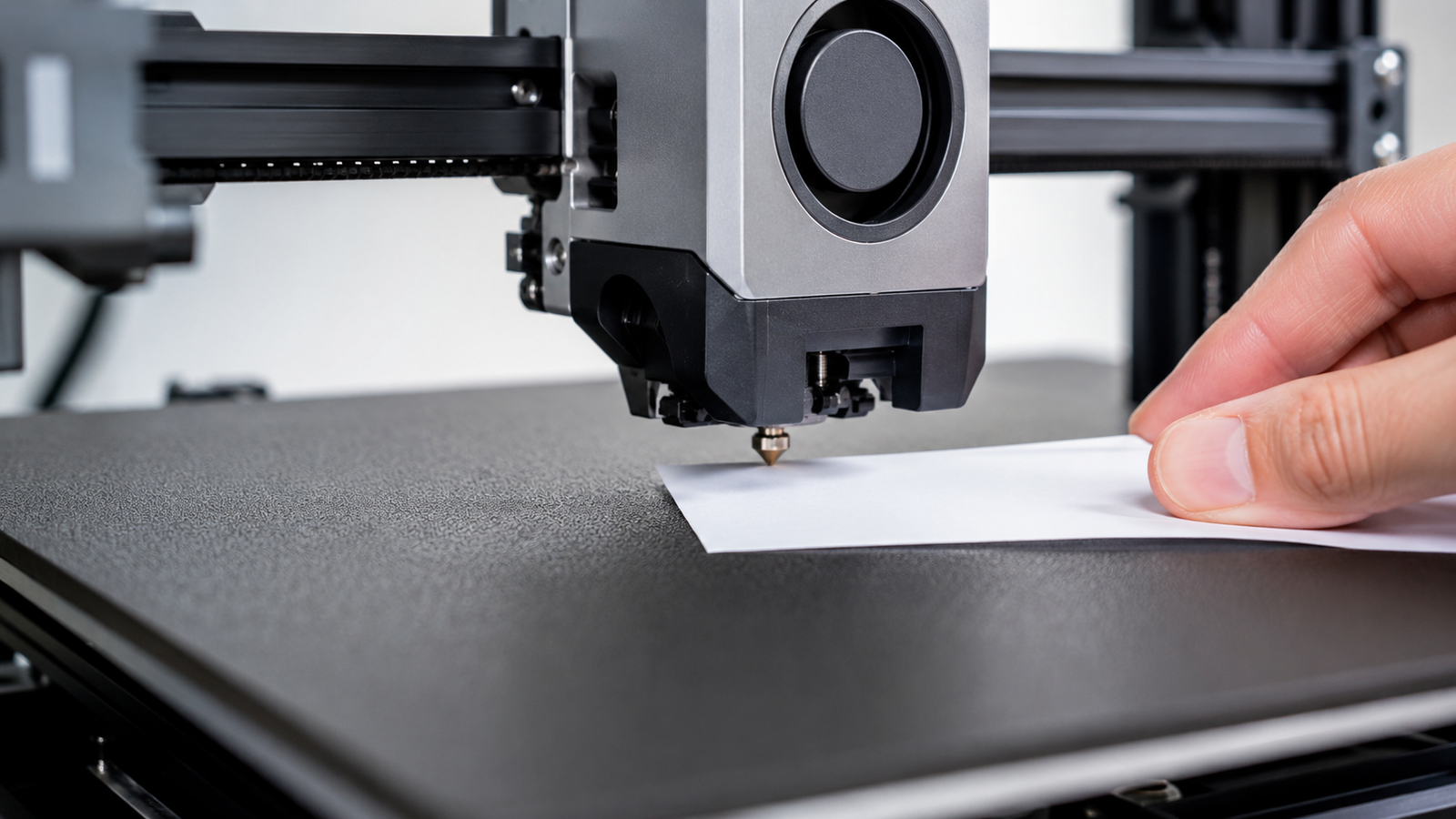
- Heat the printer to normal printing temperatures, because heat changes dimensions slightly. Typical values: PLA 200 °C (392 °F) nozzle / 60 °C (140 °F) bed; PETG 240 °C / 80 °C; ABS 250 °C / 100 °C.
- Home all axes so the printer knows its exact position.
- Disable the steppers (often labeled Disable Steppers or Disable Motors).
- Slide a sheet of paper between nozzle and bed. You want light drag: not loose, not stuck.
- Adjust the leveling knobs at each corner: front left, front right, back left, back right. Repeat the cycle two or three times.
- Check the center of the bed once the corners are set.
Automatic bed leveling
Sensors such as BLTouch, CR Touch, inductive or capacitive probes measure many points and let the firmware compensate for small irregularities. Most modern printers, including the Bambu Lab A1 and P1S, Creality K1 series, Elegoo Neptune 4 and Anycubic Kobra, include ABL. Still inspect the bed surface regularly.
Step 2: Set the Z offset
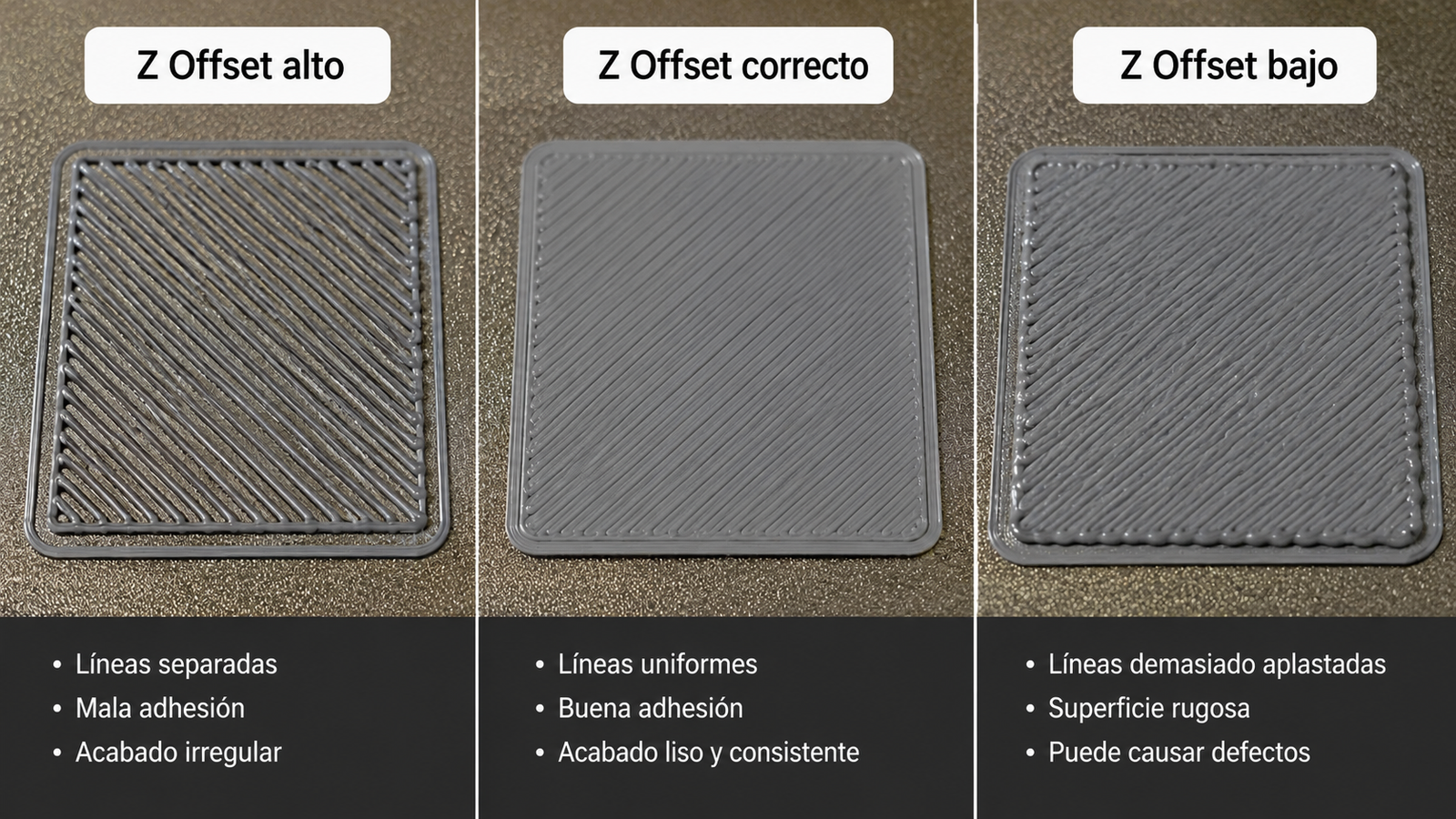
The Z offset is the exact distance between the nozzle and the bed when the printer thinks it’s at Z = 0. A difference of a few hundredths of a millimeter has a big effect on the first layer.
- Too high: weak adhesion, separated lines, parts that pop off.
- Too low: over-squished lines, ridges and plastic buildup, risk of damaging the bed.
The best way to dial it in is to print a first-layer test and adjust the offset live (“baby stepping”) until lines are even, fused together and smooth.
Step 3: Get a perfect first layer
A good print starts with a good first layer: it’s the foundation for everything above it. Beyond leveling and Z offset, it depends on:
- Bed temperature matched to the material
- A clean surface: wipe it with isopropyl alcohol or the cleaner your manufacturer recommends
- A slower first-layer speed for better adhesion
Print a dedicated first-layer pattern after any major change. It uses very little filament and shows Z offset, adhesion, uniformity and leveling at a glance. You’re aiming for an even layer with no gaps and no over-squish.
Step 4: Calibrate the extruder (E-steps)
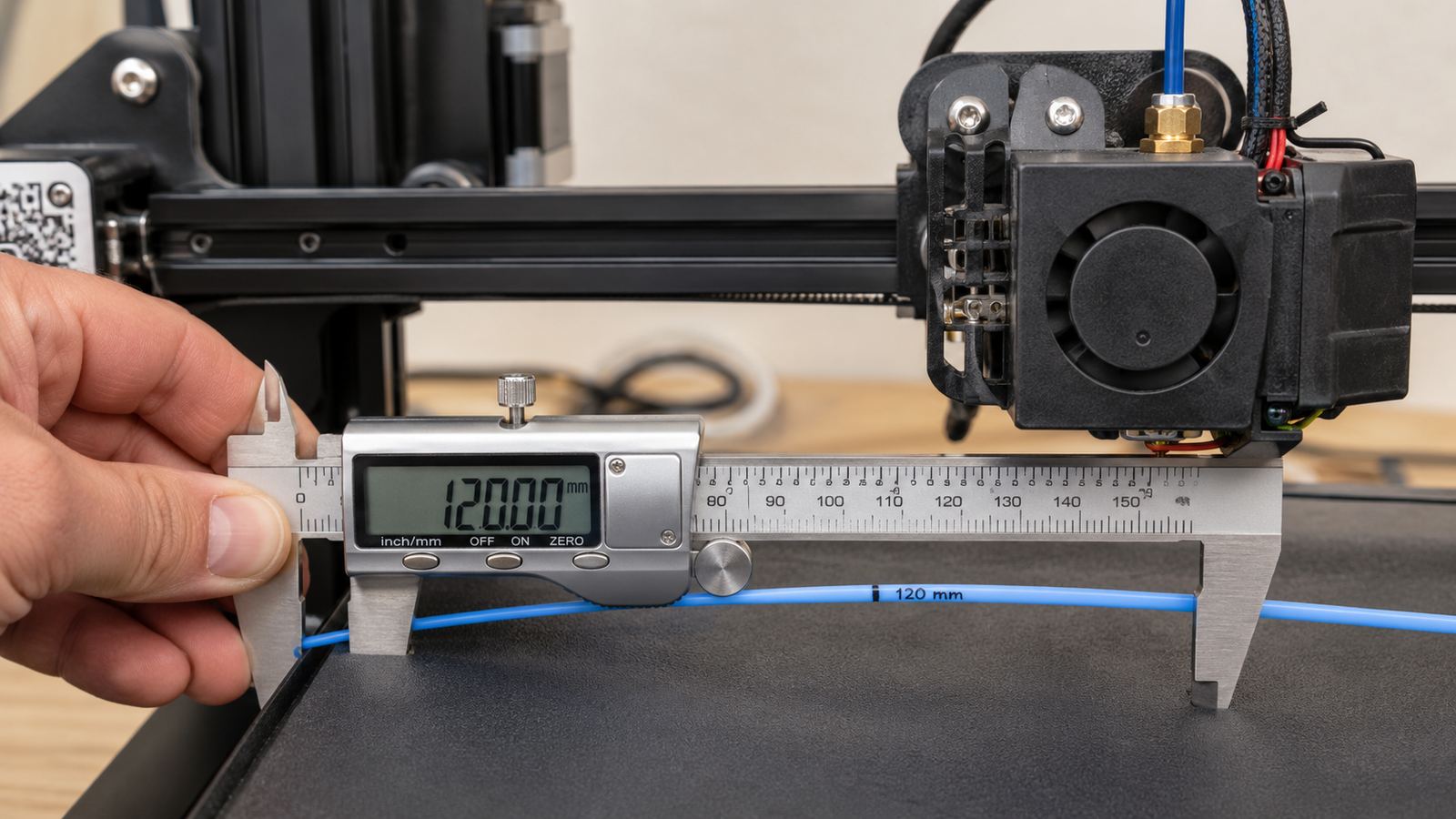
E-steps (extruder steps per millimeter) tell the extruder motor how many steps it needs to push 1 mm of filament. Factory values are often slightly off due to mechanical tolerances, which causes over- or under-extrusion.
- Heat the hotend to your filament’s normal temperature (e.g. 200 °C for PLA).
- Mark the filament exactly 120 mm above the extruder entry.
- Command the printer to extrude 100 mm.
- Measure the distance left to your mark. If 20 mm remain, it’s perfect. If 25 mm remain, it only extruded 95 mm.
- Calculate: new E-steps = current E-steps × 100 ÷ actual mm extruded, save the value in firmware and repeat the test to confirm.
Many modern printers with sealed firmware (such as Bambu Lab) handle this automatically; on those, skip to flow calibration.
Step 5: Calibrate the flow rate
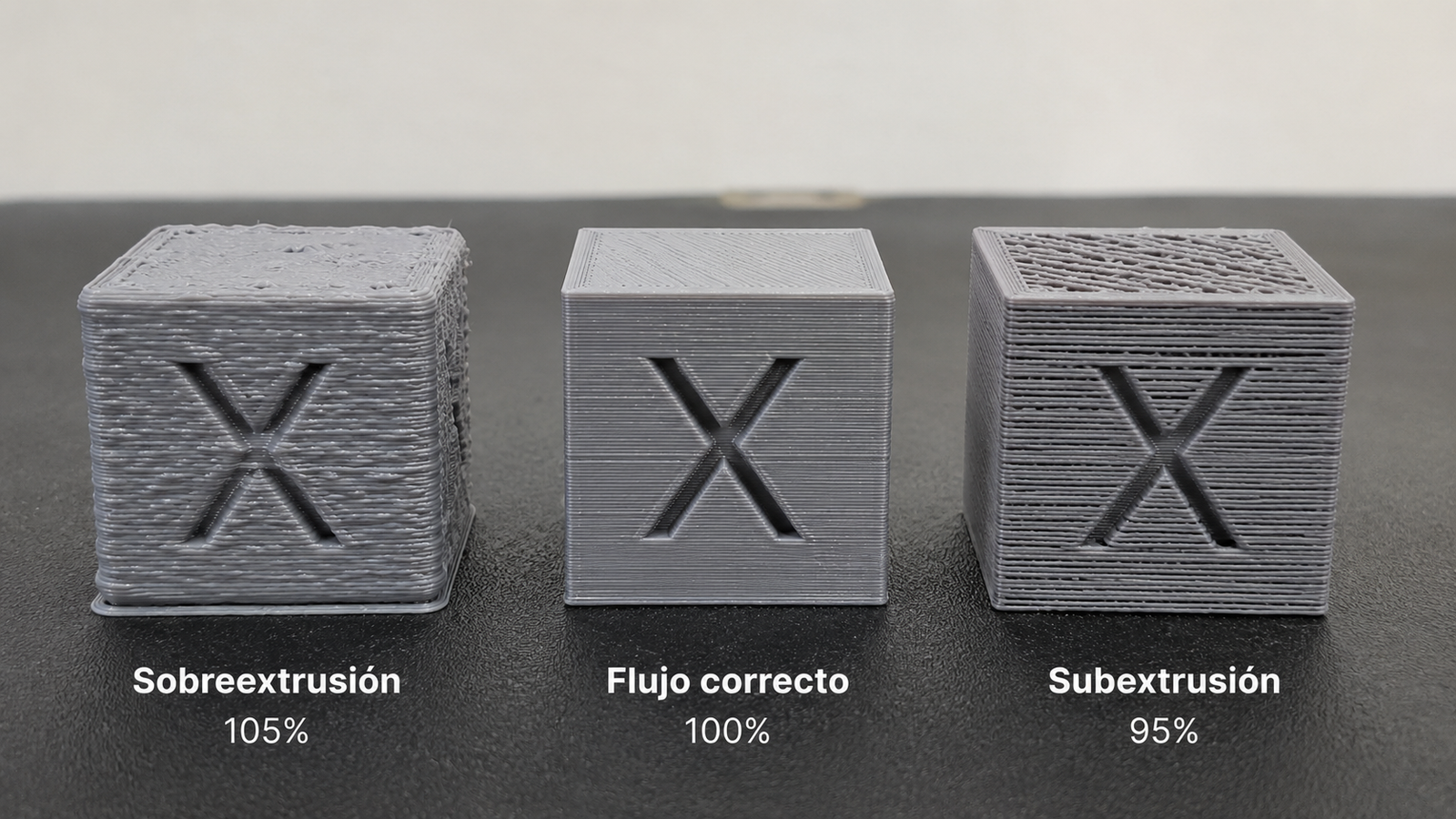
E-steps fix the extruder mechanically; flow rate fine-tunes how much plastic is actually laid down. Recalibrate it whenever you change filament brand, nozzle or layer height.
- Flow too high: blobby, rough surfaces and soft detail.
- Flow too low: visible gaps, poor layer bonding and weak parts.
OrcaSlicer, Bambu Studio and PrusaSlicer include built-in flow tests: print a set of samples, pick the smoothest top surface and apply the suggested value.
Check with a 20 mm calibration cube
Print a 20 × 20 × 20 mm cube and measure it with calipers. If X, Y or Z are noticeably off, review E-steps, flow, belt tension and mechanics. Also measure your filament diameter at several points; 1.75 mm filament can vary slightly, and entering the real value in the slicer improves accuracy.
Step 6: Find the right temperature
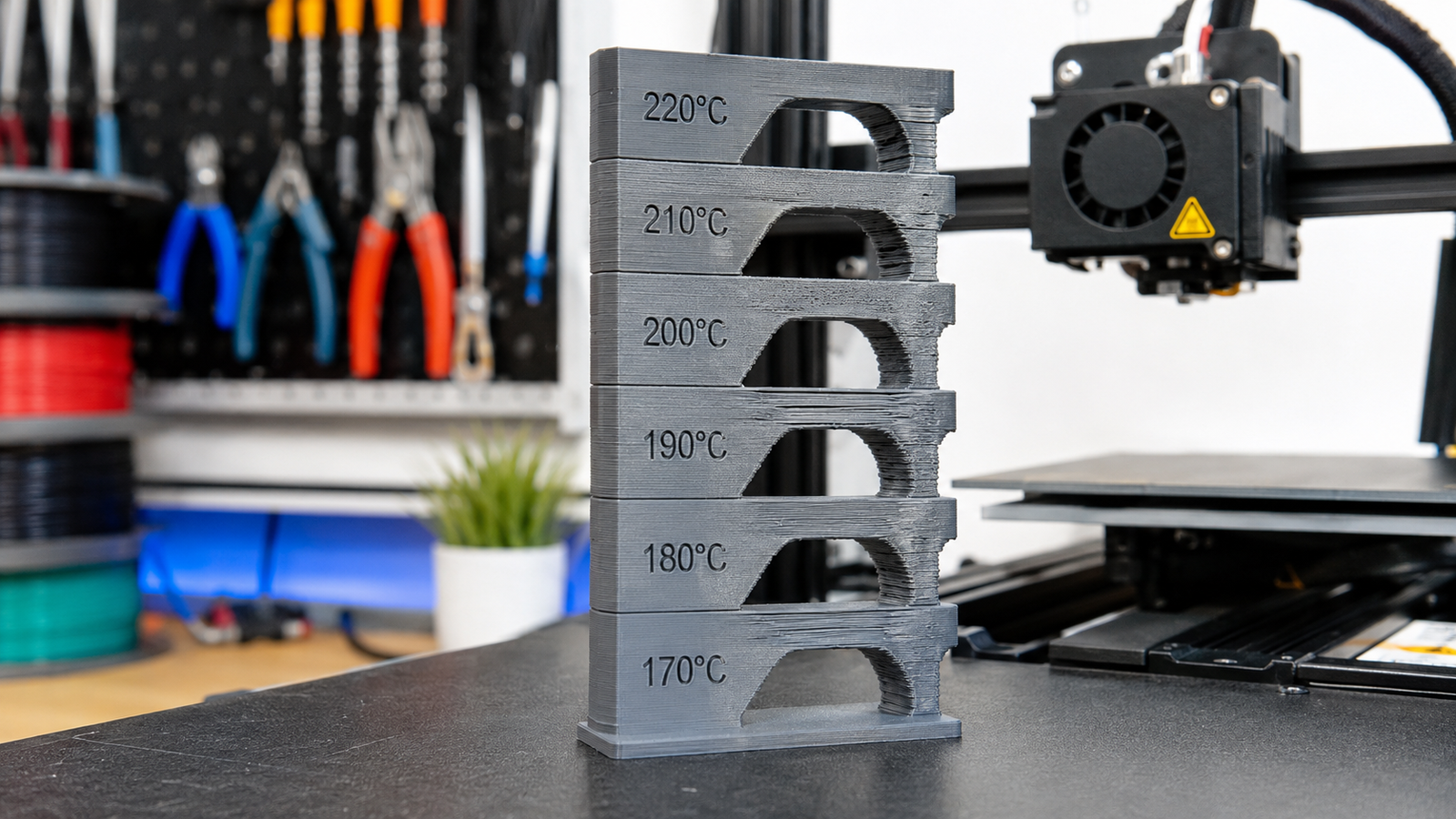
Manufacturer ranges are a starting point, but every printer and spool behaves differently. A temperature tower prints sections at different temperatures (for example 220 down to 195 °C). Pick the section with the best surface, least stringing, sharpest detail and strongest layer bonding.
| Material | Typical nozzle temperature |
|---|---|
| PLA | 190–220 °C (374–428 °F) |
| PETG | 220–250 °C (428–482 °F) |
| ABS | 230–260 °C (446–500 °F) |
| TPU | 210–240 °C (410–464 °F) |
Step 7: Tune retraction to stop stringing
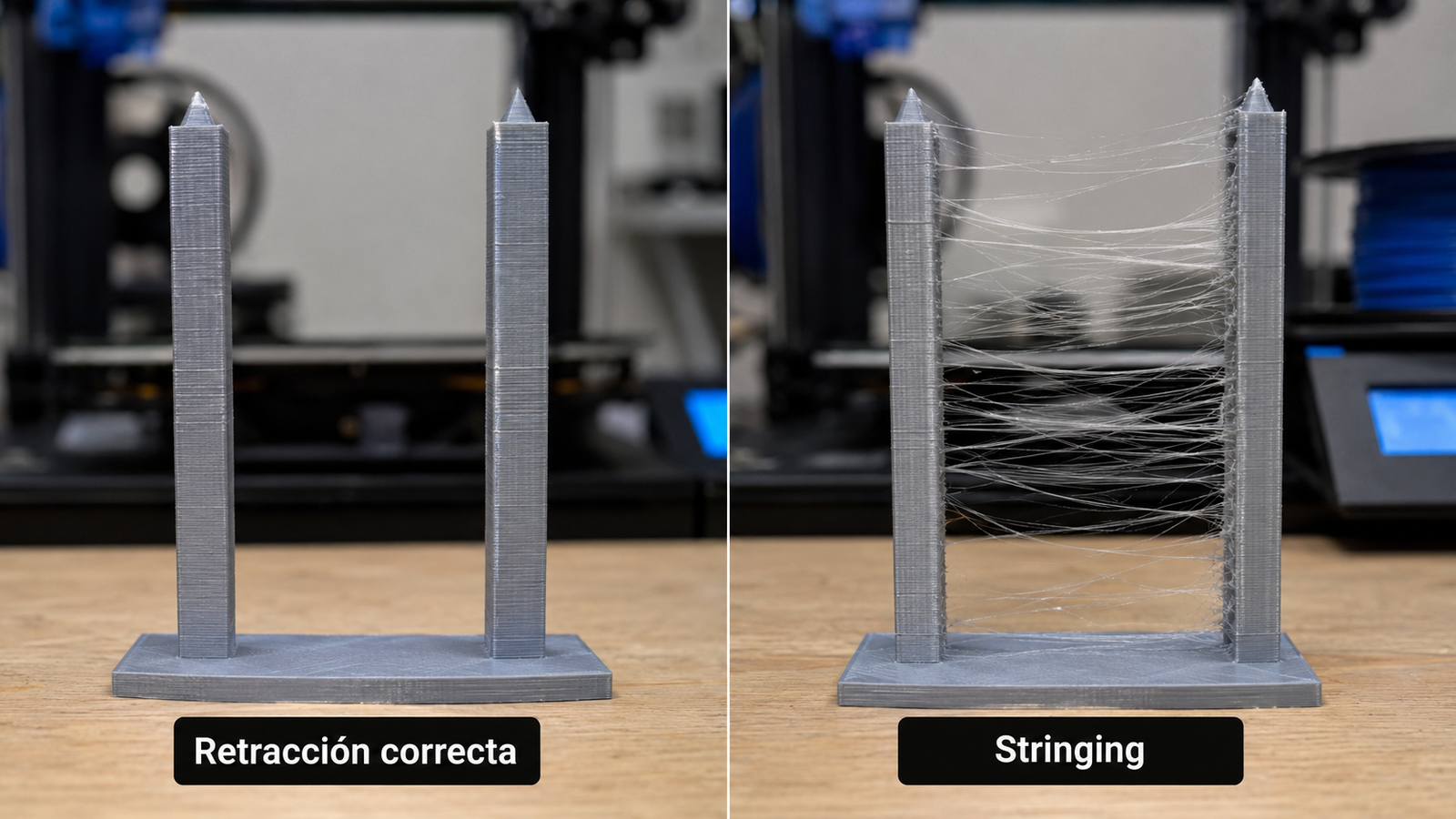
When the nozzle travels without printing, the extruder pulls the filament back slightly so plastic doesn’t ooze. Poor retraction leaves thin, cobweb-like strings between parts. Common causes are too little retraction, too much heat, wet filament and the wrong travel speed.
Print a retraction tower and change one value at a time while watching the strings. Starting points:
- Direct-drive extruders: 0.5–2 mm retraction distance
- Bowden setups: 3–7 mm
- Retraction speed: typically 25–60 mm/s, depending on extruder, material and hotend
Step 8: Dial in print speed
Faster isn’t always better. Pushing speed too far causes lost detail, vibration, ghosting (ringing), weak layer bonding and surface defects. As a rough guide for traditional printers: PLA 50–150 mm/s, PETG 40–100 mm/s, ABS 40–80 mm/s. Modern high-speed CoreXY printers with input shaping can go much faster.
How to reduce ghosting
- Lower print speed
- Reduce acceleration and jerk, or run input shaping if your firmware supports it
- Check belts, pulleys, screws and rails for looseness
Advanced calibration tests
- XYZ cube: dimensions, accuracy and scaling
- Temperature tower: ideal material temperature
- Retraction tower: stringing
- Flow test: flow rate
- Bridging test: spans without support
- Overhang test: cooling and surface quality on angles
How to tell if your printer is well calibrated
A well-calibrated printer produces an even first layer, clean surfaces, no stringing, accurate dimensions, consistent walls, strong layer bonding and no unexpected warping, and it repeats those results print after print.
| Problem | Likely causes |
|---|---|
| Prints not sticking | Unlevel bed, wrong Z offset, bed too cold, dirty surface |
| Strings between parts | Retraction too low, temperature too high, wet filament |
| Wrong dimensions | E-steps or flow off, mechanical issues |
| Ripples near corners | Speed or acceleration too high, loose belts |
Common calibration mistakes
- Changing several settings at once: you won’t know what helped. Adjust one parameter at a time.
- Skipping test models: tune on cubes and towers, not complex prints.
- Using cheap filament: inconsistent material defeats any calibration.
- Ignoring moisture: PETG, nylon and TPU absorb water quickly; dry them before printing.
- Chasing perfection: small variations are normal; aim for consistent, reliable results.
Bottom line
Knowing how to calibrate a 3D printer pays off whether you own a budget machine or a professional one. Work through the bed, Z offset, E-steps, flow, temperature, retraction and speed in order, and you’ll get more accurate parts, fewer failures, less wasted filament and better-looking prints. Once you understand the basics, recalibrating takes minutes.
3D printer calibration FAQ
Check bed leveling regularly and run a full calibration whenever print quality drops, after moving the printer, or when you change nozzle or filament brand.
Yes. Many modern printers ship well tuned and calibrate themselves, but it’s always worth verifying the first layer, flow and temperature for your filament.
The exact distance between the nozzle and the print surface when the printer is at Z = 0. It has a huge effect on first-layer adhesion.
The usual causes are an unlevel bed, wrong Z offset, a dirty build surface or a bed temperature that’s too low for the material.
Usually insufficient retraction, a nozzle temperature that’s too high or wet filament. A retraction tower and a temperature tower will pinpoint the cause.
Typically 190–220 °C (374–428 °F), depending on the brand. Print a temperature tower to find the best value for your spool.