
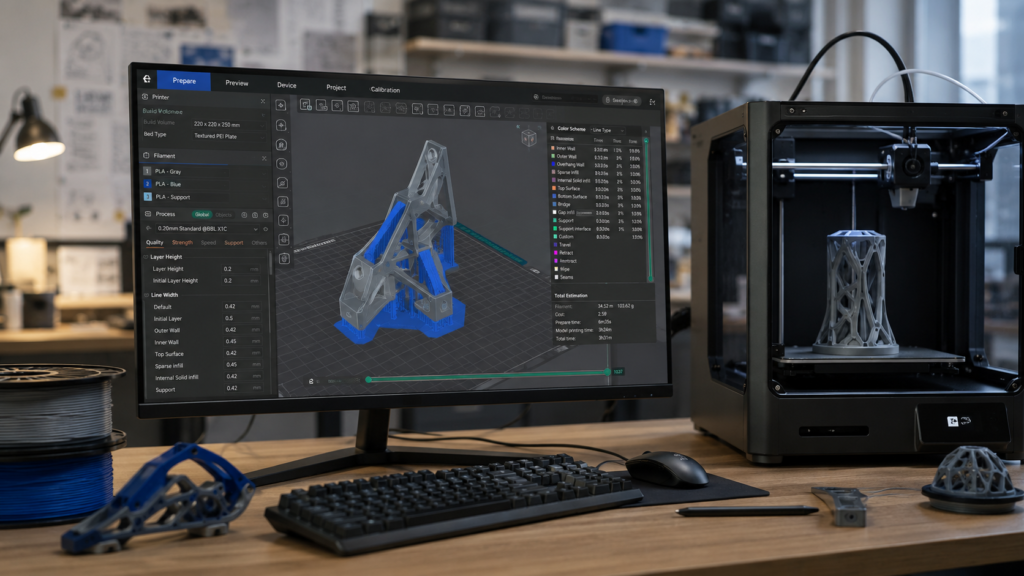
- Software para Impresión 3D
- ¿Qué es un software para impresión 3D?
- Tipos de software para impresión 3D
- Fusion 360 – El mejor software de diseño 3D para impresión 3D
- Blender – El mejor software gratuito para modelado artístico
- Tinkercad – El mejor programa para principiantes
- FreeCAD – La mejor alternativa gratuita para diseño técnico
- SolidWorks – La referencia profesional de la industria
- ¿Qué programa de diseño 3D elegir?
- Mejores programas Slicer para impresión 3D
- OrcaSlicer – El slicer favorito de los usuarios avanzados
- Ultimaker Cura – El slicer más popular del mundo
- Bambu Studio – El software ideal para impresoras Bambu Lab
- PrusaSlicer – El estándar de la comunidad Prusa
- Chitubox – El software más popular para impresión 3D de resina
- Lychee Slicer – La alternativa premium para resina
- Tabla comparativa de los mejores slicers para impresión 3D
- ¿Qué slicer elegir?
- Software de control remoto para impresoras 3D
- ¿Qué software para impresión 3D elegir según tu nivel?
- Errores comunes al elegir software para impresión 3D
- Conclusión
- Sigue aprendiendo sobre impresión 3D
- Preguntas frecuentes sobre software para impresión 3D
Software para Impresión 3D
La impresora 3D es sólo una parte del proceso de fabricación.
Sin el software adecuado, incluso la mejor impresora del mercado sería incapaz de producir una sola pieza.
Por este motivo, el software para impresión 3D juega un papel fundamental dentro de cualquier proyecto de fabricación aditiva.
Actualmente existen decenas de programas especializados que permiten:
- Diseñar modelos 3D.
- Preparar archivos para impresión.
- Controlar impresoras de forma remota.
- Optimizar parámetros de impresión.
- Gestionar granjas de impresoras.
Sin embargo, no todos cumplen la misma función.
De hecho, uno de los errores más habituales entre quienes empiezan en este mundo es pensar que sólo existe un único programa para imprimir en 3D.
La realidad es que normalmente intervienen varias herramientas diferentes.
Por ejemplo:
Un usuario puede diseñar una pieza en Fusion 360, prepararla mediante OrcaSlicer y posteriormente supervisar la impresión desde una aplicación móvil.
En esta guía descubrirás cuáles son los mejores programas para impresión 3D, qué funciones cumple cada uno y cuál deberías utilizar según tu nivel de experiencia.
¿Qué es un software para impresión 3D?
Cuando hablamos de software para impresión 3D nos referimos al conjunto de programas necesarios para transformar una idea en un objeto físico.
El proceso suele dividirse en tres etapas principales:
Diseño
Creación del modelo tridimensional.
Laminado (Slicing)
Conversión del modelo en instrucciones que la impresora puede interpretar.
Control y monitorización
Gestión de impresoras y seguimiento de trabajos.
Por ello podemos clasificar el software de impresión 3D en tres grandes grupos.
- Programas de diseño 3D.
- Software slicer.
- Software de control remoto.
Cada uno cumple una función específica dentro del flujo de trabajo.
Tipos de software para impresión 3D
Software de diseño 3D
Son los programas utilizados para crear modelos desde cero.
Permiten diseñar:
- Piezas mecánicas.
- Prototipos.
- Figuras.
- Componentes industriales.
- Objetos decorativos.
Sin ellos sería imposible fabricar diseños personalizados.
Software Slicer
Los slicers son probablemente los programas más importantes para la mayoría de usuarios.
Su función consiste en convertir modelos STL o 3MF en instrucciones de impresión.
Estas instrucciones se conocen como:
G-Code
y contienen toda la información necesaria para que la impresora sepa exactamente qué movimientos debe realizar.
Software de control remoto
Las impresoras modernas permiten gestionar trabajos desde ordenadores, tablets o teléfonos móviles.
Esto facilita enormemente la supervisión de impresiones largas.
Además permite:
- Monitorizar cámaras.
- Gestionar múltiples impresoras.
- Recibir alertas.
- Consultar estadísticas.
Mejores programas de diseño 3D
Elegir el programa de modelado adecuado dependerá principalmente de tu experiencia y del tipo de proyectos que quieras desarrollar.
A continuación analizamos los programas más utilizados actualmente.
Fusion 360 – El mejor software de diseño 3D para impresión 3D
Si existe un programa que ha revolucionado el diseño para impresión 3D durante los últimos años, ese es Fusion 360.
Desarrollado por Autodesk, Fusion 360 se ha convertido en una de las herramientas más utilizadas por:
- Makers.
- Ingenieros.
- Diseñadores industriales.
- Empresas tecnológicas.
- Usuarios avanzados de impresión 3D.
Su principal ventaja es que combina múltiples funciones dentro de una única plataforma:
- Diseño CAD.
- Diseño paramétrico.
- Simulación.
- Fabricación.
- Renderizado.
Esto permite desarrollar proyectos muy complejos sin necesidad de utilizar múltiples programas diferentes.
Ventajas de Fusion 360
✅ Interfaz profesional.
✅ Diseño paramétrico avanzado.
✅ Ideal para impresión 3D.
✅ Gran comunidad de usuarios.
✅ Compatible con proyectos mecánicos complejos.
✅ Gratuito para uso personal y educativo.
Inconvenientes
❌ Curva de aprendizaje superior a Tinkercad.
❌ Requiere conexión a internet para determinadas funciones.
❌ Puede resultar excesivo para usuarios que sólo quieren imprimir figuras simples.
¿Para quién recomendamos Fusion 360?
Fusion 360 es probablemente la mejor opción para:
- Diseño de piezas mecánicas.
- Ingeniería.
- Robótica.
- Prototipado.
- Fabricación de productos.
Si tu objetivo es crear piezas funcionales para impresión 3D, Fusion 360 es actualmente una de las mejores herramientas disponibles.
Blender – El mejor software gratuito para modelado artístico
Mientras Fusion 360 domina el diseño técnico, Blender es la referencia absoluta para el modelado artístico.
Se trata de un software completamente gratuito y de código abierto utilizado profesionalmente en:
- Animación.
- Videojuegos.
- Cine.
- Modelado 3D.
- Escultura digital.
Muchos creadores de miniaturas, figuras coleccionables y modelos decorativos utilizan Blender como herramienta principal.
Ventajas de Blender
✅ Totalmente gratuito.
✅ Potente sistema de modelado.
✅ Escultura digital avanzada.
✅ Comunidad gigantesca.
✅ Actualizaciones constantes.
Inconvenientes
❌ Curva de aprendizaje pronunciada.
❌ Menos orientado a diseño mecánico.
❌ Puede resultar complejo para principiantes.
¿Para quién recomendamos Blender?
Ideal para:
- Miniaturas.
- Personajes.
- Escultura digital.
- Modelos artísticos.
- Diseño creativo.
Si tu objetivo es imprimir figuras, Blender es probablemente la mejor opción gratuita del mercado.
Tinkercad – El mejor programa para principiantes
Cuando alguien me pregunta:
¿Qué programa usar para empezar en impresión 3D?
Mi respuesta suele ser siempre la misma:
👉 Tinkercad.
Desarrollado por Autodesk, Tinkercad es una plataforma online diseñada para simplificar al máximo el aprendizaje.
Su filosofía es muy diferente a la de Fusion 360 o Blender.
Aquí todo está pensado para que cualquier persona pueda crear modelos sencillos en cuestión de minutos.
Ventajas de Tinkercad
✅ Extremadamente fácil de utilizar.
✅ Gratuito.
✅ Funciona desde el navegador.
✅ Ideal para educación.
✅ Perfecto para principiantes.
Inconvenientes
❌ Limitado para proyectos complejos.
❌ Menor precisión técnica.
❌ No adecuado para ingeniería avanzada.
¿Para quién recomendamos Tinkercad?
- Principiantes.
- Niños.
- Educación.
- Makers ocasionales.
- Usuarios que nunca han diseñado en 3D.
FreeCAD – La mejor alternativa gratuita para diseño técnico
FreeCAD es uno de los programas de diseño paramétrico más populares dentro del software libre.
Su objetivo es ofrecer funcionalidades similares a soluciones profesionales como Fusion 360, pero sin coste alguno.
Durante los últimos años ha evolucionado enormemente y actualmente resulta perfectamente válido para muchos proyectos de impresión 3D.
Ventajas de FreeCAD
✅ Gratuito.
✅ Código abierto.
✅ Diseño paramétrico.
✅ Buena comunidad.
✅ Compatible con impresión 3D.
Inconvenientes
❌ Interfaz menos moderna.
❌ Algunas funciones resultan menos intuitivas.
❌ Menor integración que Fusion 360.
¿Para quién recomendamos FreeCAD?
Ideal para usuarios que buscan:
- Software gratuito.
- Diseño técnico.
- Ingeniería básica.
- Modelado paramétrico.
SolidWorks – La referencia profesional de la industria
Cuando hablamos de diseño industrial profesional, pocos nombres tienen tanto peso como SolidWorks.
Durante décadas ha sido una de las herramientas más utilizadas por:
- Ingenieros.
- Fabricantes.
- Empresas industriales.
- Departamentos de I+D.
Aunque no está específicamente orientado a la impresión 3D, resulta perfecto para diseñar piezas que posteriormente serán fabricadas mediante tecnologías aditivas.
Ventajas de SolidWorks
✅ Potencia profesional.
✅ Herramientas avanzadas de ingeniería.
✅ Simulación integrada.
✅ Amplia adopción industrial.
Inconvenientes
❌ Licencias costosas.
❌ Curva de aprendizaje elevada.
❌ Excesivo para muchos usuarios domésticos.
¿Para quién recomendamos SolidWorks?
- Ingeniería profesional.
- Industria.
- Empresas.
- Diseño mecánico avanzado.
¿Qué programa de diseño 3D elegir?
Después de analizar las principales opciones disponibles, podemos resumirlo fácilmente:
🥇 Fusion 360 → Mejor opción general para impresión 3D.
🥇 Blender → Mejor opción para modelado artístico.
🥇 Tinkercad → Mejor opción para principiantes.
🥇 FreeCAD → Mejor alternativa gratuita para diseño técnico.
🥇 SolidWorks → Mejor opción profesional e industrial.
La elección dependerá de tus objetivos, experiencia y presupuesto.
Mejores programas Slicer para impresión 3D
Si los programas de diseño son los encargados de crear los modelos, los slicers son los responsables de transformarlos en instrucciones que la impresora pueda entender.
De hecho, para la mayoría de usuarios, el slicer es probablemente el software que más utilizarán durante toda su experiencia en impresión 3D.
Un buen slicer puede marcar enormes diferencias en:
- Calidad de impresión.
- Velocidad.
- Consumo de material.
- Fiabilidad.
- Acabado final.
Actualmente existen varias opciones muy potentes y cada una presenta ventajas específicas.
OrcaSlicer – El slicer favorito de los usuarios avanzados
Durante los últimos años, OrcaSlicer se ha convertido en uno de los programas más populares dentro de la comunidad de impresión 3D.
Nació como una evolución de Bambu Studio y rápidamente ganó popularidad gracias a su enorme capacidad de personalización.
Muchos usuarios consideran que actualmente es el mejor slicer para impresión 3D.
Ventajas de OrcaSlicer
✅ Gratuito.
✅ Actualizaciones constantes.
✅ Compatible con múltiples marcas.
✅ Excelente calidad de impresión.
✅ Funciones avanzadas de calibración.
✅ Muy optimizado para impresoras modernas.
Inconvenientes
❌ Puede resultar abrumador para principiantes.
❌ Gran cantidad de parámetros disponibles.
¿Para quién recomendamos OrcaSlicer?
- Usuarios avanzados.
- Makers.
- Entusiastas de la impresión 3D.
- Usuarios de Bambu Lab.
- Usuarios de Klipper.
Nuestra valoración
🥇 Probablemente el mejor slicer generalista disponible actualmente.
Ultimaker Cura – El slicer más popular del mundo
Durante muchos años, Cura ha sido el programa de laminado más utilizado del mercado.
Su enorme popularidad se debe a varios factores:
- Gratuito.
- Fácil de utilizar.
- Compatible con prácticamente cualquier impresora.
- Comunidad gigantesca.
Prácticamente cualquier usuario que haya tenido una impresora 3D ha utilizado Cura en algún momento.
Ventajas de Cura
✅ Muy fácil de aprender.
✅ Compatible con miles de impresoras.
✅ Gran cantidad de perfiles preconfigurados.
✅ Comunidad enorme.
✅ Amplia documentación.
Inconvenientes
❌ Algunas funciones avanzadas están menos desarrolladas que en OrcaSlicer.
❌ Interfaz algo más antigua.
¿Para quién recomendamos Cura?
- Principiantes.
- Usuarios domésticos.
- Centros educativos.
- Makers ocasionales.
Nuestra valoración
🥇 Sigue siendo una de las mejores opciones para comenzar.
Bambu Studio – El software ideal para impresoras Bambu Lab
La llegada de Bambu Lab ha transformado profundamente el mercado de la impresión 3D.
Y parte de ese éxito se debe precisamente a Bambu Studio.
Este software está optimizado específicamente para las impresoras de la marca.
Su integración permite:
- Gestión remota.
- Monitorización.
- Configuración simplificada.
- Impresión multicolor.
Todo dentro de un ecosistema muy bien integrado.
Ventajas de Bambu Studio
✅ Optimización excelente.
✅ Muy fácil de utilizar.
✅ Gestión remota integrada.
✅ Impresión multicolor avanzada.
✅ Actualizaciones frecuentes.
Inconvenientes
❌ Más orientado a impresoras Bambu Lab.
❌ Menor flexibilidad que OrcaSlicer.
¿Para quién recomendamos Bambu Studio?
- Usuarios de Bambu Lab A1.
- Usuarios de Bambu Lab P1S.
- Usuarios de Bambu Lab X1 Carbon.
Nuestra valoración
🥇 Imprescindible si tienes una impresora Bambu Lab.
PrusaSlicer – El estándar de la comunidad Prusa
PrusaSlicer es uno de los programas más respetados dentro del sector.
Desarrollado por Prusa Research, destaca por su estabilidad y por la calidad de sus perfiles de impresión.
Aunque nació orientado a impresoras Prusa, actualmente funciona perfectamente con muchas otras marcas.
Ventajas de PrusaSlicer
✅ Muy estable.
✅ Excelente calidad de impresión.
✅ Gran soporte comunitario.
✅ Compatible con múltiples impresoras.
Inconvenientes
❌ Interfaz menos moderna.
❌ Menos intuitivo para principiantes.
¿Para quién recomendamos PrusaSlicer?
- Usuarios de Prusa.
- Makers avanzados.
- Usuarios que buscan máxima fiabilidad.
Nuestra valoración
🥇 Uno de los slicers más sólidos del mercado.
Chitubox – El software más popular para impresión 3D de resina
Cuando hablamos de impresoras 3D de resina, uno de los nombres más importantes es Chitubox.
Durante años ha sido el slicer de referencia para:
- Elegoo.
- Anycubic.
- Creality.
- Phrozen.
y muchos otros fabricantes.
Ventajas de Chitubox
✅ Muy extendido.
✅ Compatible con la mayoría de impresoras MSLA.
✅ Fácil generación de soportes.
✅ Interfaz sencilla.
Inconvenientes
❌ Algunas funciones avanzadas son de pago.
❌ Menor flexibilidad que otras alternativas.
¿Para quién recomendamos Chitubox?
- Usuarios de impresión 3D de resina.
- Principiantes.
- Modelistas.
- Miniaturistas.
Nuestra valoración
🥇 Uno de los programas más utilizados para resina.
Lychee Slicer – La alternativa premium para resina
En los últimos años Lychee Slicer ha ganado una enorme popularidad.
Muchos usuarios consideran que actualmente supera a Chitubox en determinados aspectos.
Especialmente en:
- Gestión de soportes.
- Organización de proyectos.
- Flujo de trabajo profesional.
Ventajas de Lychee Slicer
✅ Excelente generación de soportes.
✅ Interfaz moderna.
✅ Compatible con numerosas impresoras.
✅ Muy orientado a miniaturas y modelismo.
Inconvenientes
❌ Algunas funciones requieren suscripción.
❌ Puede consumir más recursos.
¿Para quién recomendamos Lychee?
- Usuarios avanzados de resina.
- Miniaturistas.
- Profesionales.
Nuestra valoración
🥇 Probablemente la mejor alternativa premium para impresión 3D de resina.
Tabla comparativa de los mejores slicers para impresión 3D
| Programa | Tipo | Nivel | Gratuito | Ideal para |
|---|---|---|---|---|
| OrcaSlicer | FDM | Intermedio/Avanzado | ✅ | Máximo rendimiento |
| Cura | FDM | Principiante/Intermedio | ✅ | Uso general |
| Bambu Studio | FDM | Todos los niveles | ✅ | Usuarios Bambu Lab |
| PrusaSlicer | FDM | Intermedio | ✅ | Máxima fiabilidad |
| Chitubox | Resina | Todos los niveles | ✅ | Impresión MSLA |
| Lychee Slicer | Resina | Intermedio/Avanzado | ✅/Premium | Miniaturas y profesionales |
¿Qué slicer elegir?
Mejor slicer para principiantes
🥇 Cura
Mejor slicer para usuarios avanzados
🥇 OrcaSlicer
Mejor slicer para impresoras Bambu Lab
🥇 Bambu Studio
Mejor slicer para impresoras Prusa
🥇 PrusaSlicer
Mejor slicer para impresión 3D de resina
🥇 Chitubox
Mejor alternativa premium para resina
🥇 Lychee Slicer
Software de control remoto para impresoras 3D
La evolución de las impresoras 3D durante los últimos años no sólo ha afectado al hardware.
El software también ha avanzado enormemente.
Actualmente muchas impresoras permiten controlar y supervisar trabajos desde cualquier lugar mediante aplicaciones móviles o plataformas web.
Esto resulta especialmente útil cuando realizamos impresiones largas que pueden durar:
- Varias horas.
- Toda una noche.
- Incluso varios días.
Gracias al software de monitorización podemos comprobar el estado de la impresión sin necesidad de estar físicamente junto a la máquina.
Bambu Handy
Los usuarios de Bambu Lab disponen de una de las mejores aplicaciones móviles del mercado.
Con Bambu Handy es posible:
- Iniciar impresiones.
- Supervisar cámaras.
- Consultar estadísticas.
- Gestionar filamentos.
- Recibir alertas.
Todo ello desde el teléfono móvil.
Prusa Connect
Prusa también ha desarrollado su propia plataforma de gestión remota.
Permite:
- Controlar múltiples impresoras.
- Supervisar trabajos.
- Gestionar colas de impresión.
Especialmente útil para talleres y pequeñas granjas de impresión.
Creality Cloud
Creality ofrece una solución integrada que combina:
- Biblioteca de modelos.
- Gestión remota.
- Comunidad.
- Monitorización.
Aunque no alcanza el nivel de integración de Bambu Lab, sigue siendo una herramienta interesante para usuarios de la marca.
OctoPrint
Mención especial merece OctoPrint.
Durante muchos años ha sido la solución favorita de miles de makers.
Instalado normalmente sobre una Raspberry Pi, permite convertir prácticamente cualquier impresora en una máquina conectada.
Ventajas de OctoPrint
✅ Gratuito.
✅ Código abierto.
✅ Gran cantidad de plugins.
✅ Compatible con numerosas impresoras.
Inconvenientes
❌ Requiere configuración inicial.
❌ Curva de aprendizaje superior.
Nuestra recomendación
Si te gusta personalizar y controlar todos los aspectos de tu impresora, OctoPrint sigue siendo una de las mejores herramientas disponibles.
¿Qué software para impresión 3D elegir según tu nivel?
Una de las preguntas más frecuentes es:
¿Qué programas necesito realmente para empezar?
La respuesta dependerá de tu experiencia.
Si eres principiante
Nuestra recomendación sería:
Diseño
🥇 Tinkercad
Slicer
🥇 Cura
Gestión remota
🥇 Aplicación oficial de tu impresora
Esta combinación permite comenzar rápidamente sin complicaciones.
Si ya tienes experiencia
Diseño
🥇 Fusion 360
🥇 Blender
Slicer
🥇 OrcaSlicer
🥇 PrusaSlicer
Gestión
🥇 OctoPrint
Si trabajas profesionalmente
Diseño
🥇 Fusion 360
🥇 SolidWorks
Slicer
🥇 OrcaSlicer
🥇 Bambu Studio
🥇 Lychee Slicer
Gestión
🥇 Plataformas cloud profesionales
Errores comunes al elegir software para impresión 3D
El software adecuado puede mejorar enormemente la experiencia de usuario.
Sin embargo, existen errores muy habituales.
Empezar con programas demasiado complejos
Muchos principiantes intentan aprender directamente:
- Fusion 360.
- Blender.
- SolidWorks.
cuando todavía están aprendiendo conceptos básicos.
Normalmente resulta mucho más efectivo comenzar con Tinkercad.
Pensar que todos los slicers son iguales
Aunque todos realizan la misma función básica, las diferencias pueden ser muy importantes.
Un perfil optimizado puede mejorar significativamente:
- Calidad.
- Velocidad.
- Consumo de material.
Utilizar configuraciones descargadas sin entenderlas
Es habitual copiar perfiles de Internet sin comprender realmente qué modifican.
Esto puede generar:
- Mala calidad.
- Errores de impresión.
- Problemas de adhesión.
No actualizar el software
Los desarrolladores publican constantemente mejoras que afectan directamente al rendimiento.
Mantener el software actualizado suele aportar ventajas importantes.
Elegir el programa por moda
No siempre el software más popular es el mejor para tu caso particular.
Lo importante es elegir la herramienta que mejor se adapte a tus necesidades.
Conclusión
El software para impresión 3D es una pieza fundamental dentro de cualquier flujo de trabajo de fabricación aditiva.
Elegir correctamente las herramientas adecuadas puede marcar una enorme diferencia tanto en la calidad de las impresiones como en la experiencia general de uso.
Para la mayoría de usuarios recomendamos una combinación sencilla:
- Tinkercad para comenzar a diseñar.
- Fusion 360 para proyectos más avanzados.
- OrcaSlicer o Cura para preparar las impresiones.
- OctoPrint o las aplicaciones oficiales para la gestión remota.
A medida que avances en el mundo de la impresión 3D descubrirás que cada programa tiene fortalezas específicas.
Lo importante es entender que no existe una única herramienta perfecta para todo.
La clave está en construir un flujo de trabajo adaptado a tus necesidades y objetivos.
Sigue aprendiendo sobre impresión 3D
También te recomendamos visitar nuestras guías relacionadas:
También te recomendamos visitar nuestras guías relacionadas:
👉 Todo lo que necesitas saber sobre impresión 3D
👉 Impresoras 3D para principiantes
👉 Mejores impresoras 3D profesionales
👉 PLA vs ABS vs PETG
👉 Software para impresión 3D
👉 Cómo calibrar una impresora 3D
Preguntas frecuentes sobre software para impresión 3D
Depende del uso.
Actualmente Fusion 360 y OrcaSlicer forman una de las combinaciones más completas.
Normalmente necesitarás:
Un programa de diseño.
Un slicer.
Cura sigue siendo una de las mejores opciones para comenzar.
Bambu Studio.
Aunque muchos usuarios avanzados prefieren OrcaSlicer.
Para usuarios avanzados suele ofrecer más opciones y mejores herramientas de calibración.
Principalmente:
Chitubox.
Lychee Slicer.
Sí.
Existe una licencia gratuita para uso personal y educativo con algunas limitaciones.
Sí.
Es una de las mejores herramientas para modelado artístico y creación de miniaturas.
Fusion 360.
La combinación más sencilla suele ser:
Tinkercad.
Cura.
Es el programa encargado de convertir un modelo 3D en instrucciones que la impresora puede interpretar.
No necesariamente.
La mayoría de impresoras permiten trabajar mediante tarjetas SD o memoria USB.